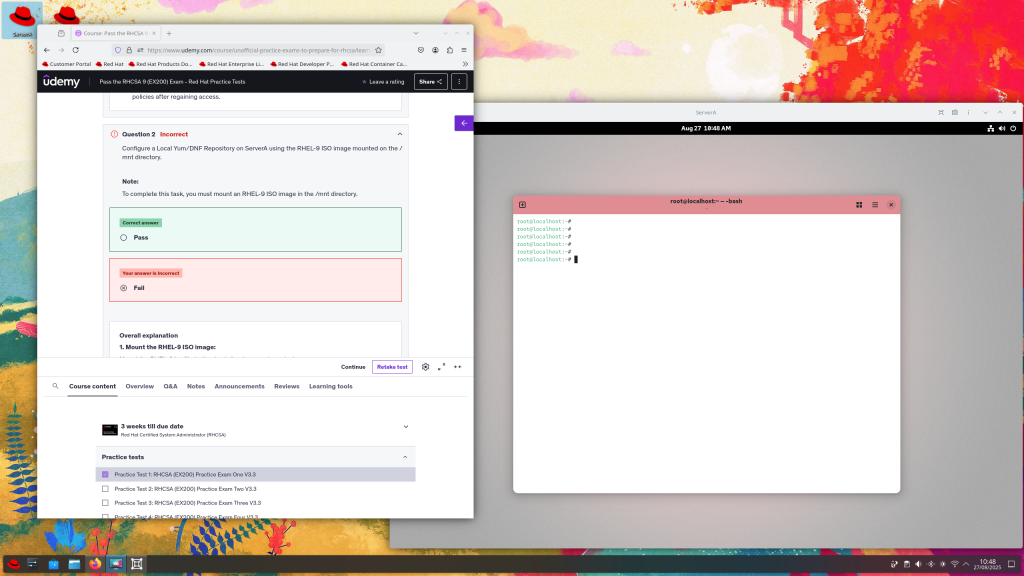
Let me first talk about what inspired me to go through all of this testing in the first place: at the time, I had Red Hat Enterprise Linux 10 Developer Edition registered on my personal office PC (for RHCSA prep) and another on my theater machine alongside Ubuntu for my ZFS setup. I want to make it clear that I still believe RHEL is a great option for medium to large enterprises requiring robust technical support and maintenance. This is in no way an advertisement for everyone to migrate from RHEL or Oracle to AlmaLinux. However, the further I got into utilizing RHEL across my systems, the more I became “homesick” for the flexibility and easy access to the community that makes AlmaLinux the choice for my use cases.
Flexible file systems that allow for snapshots and easy rollbacks are essential for me. RHEL offers Stratis, but I believe it is in no way at the same level of maturity as ZFS or Btrfs. Throughout my life with Linux, I have made countless rookie mistakes that consistently required me to reinstall my system from scratch on traditional file systems. Btrfs or ZFS are great ways to prevent these kinds of issues from happening. Managing RHEL developer subscriptions also started to become an unnecessary hassle. So I used the almalinux-deploy script to migrate my RHEL 10 installs to AlmaLinux, which led to a rabbit hole of edge cases that were addressed through my contributions to the project.
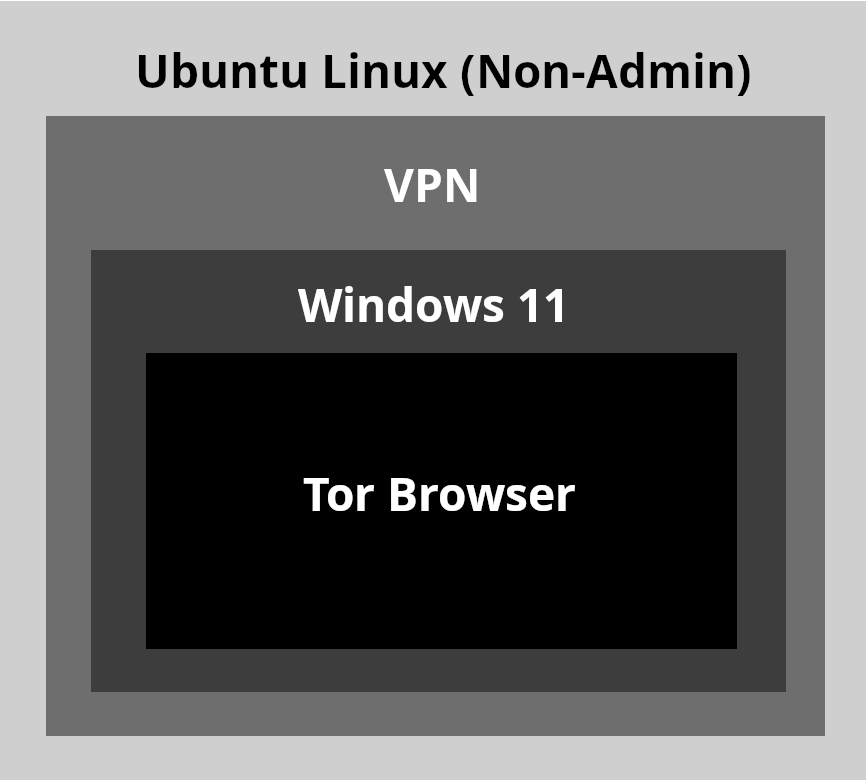
Testing approach. Enterprise customers, unlike hobbyists such as myself, have specific processes that need to meet company policy. A simple process that works for an individual can break entire workflows, possibly costing a company millions in damages and tarnishing the reputations of the administrators involved. Before having any inclination to contribute, my first assumption was to test my proposed changes across multiple versions of RHEL, Oracle, and Rocky in virtual machines. My tests proved such contributions were necessary for IT professionals discussing system migrations with stakeholders from other Enterprise Linux distributions to AlmaLinux.
The following issues were discovered, along with their solutions:
Script failed on RHEL 10. The migration script consistently failed on RHEL 10 because the command used to deactivate RHEL was not compatible. Together with developer Yurik Kohut, we devised a solution that preserves the existing behavior for RHEL 8 and 9 while running a different process on 10. We cannot assume enterprises won’t decide to switch providers on a new version of Enterprise Linux.
Script stopped with a bootloader error. While the migration itself was successful after reboot, the script ended with a bootloader error due to a path that could not be found. This issue was also escalated to Oracle, as it is related to the GRUB package for both systems. On the AlmaLinux end, a new solution was merged that removes /root from the kernel path if EL10 is using the Btrfs file system and /boot is not a Btrfs subvolume. While I can’t assume how many enterprises utilize this kind of partitioning scheme, there are some out there, and this gap is now closed.
GitHub Bug Report, GitHub Pull Request
Lack of information about Btrfs compatibility. To increase confidence in the almalinux-deploy script, IT administrators need to know upfront that migration from Oracle Linux 8 and 9 with Btrfs is not possible. Adding this explicit detail to the README saves administrators from downloading the script only to find out at the moment of execution that migration cannot proceed in their environment. Btrfs support is now explicitly mentioned for Oracle Linux 10 with its custom kernel only.
EL10 is now listed as supported. The README has been updated to reflect compatibility with newer Enterprise Linux versions.
GitHub almalinux-deploy README
Results. With all issues solved through collaboration, we addressed critical gaps in support and edge cases that can prevent enterprises from considering a migration to AlmaLinux. Thinking within enterprise systems requires a broad range of established and experimental infrastructure to ensure proposed changes are justified, rather than based solely on personal experience.